To show your spec tables on your store, you add one block called Product specs table to your product page. You do this once, in Shopify’s theme editor. After that, every Active spec table shows up on its products automatically.
If you skip this step, shoppers won’t see your tables, even if they’re Active. New to AppX? Start with Getting started.
What do I need first?
-
An Online Store 2.0 theme. AppX works with themes that support Online Store 2.0. Most newer themes do. Some older themes are not supported.
Not sure about your theme? Open the AppX Home page. If your theme is too old, it shows a red message: Your theme doesn’t support app blocks. Click Change theme to switch to a newer theme in Shopify.
-
An Active spec table. Make at least one spec table Active and choose its products. You can add the block before that, but nothing shows until a table is Active.
What’s the quickest way to add the block?
AppX can add the block for you. You just place it and save.
-
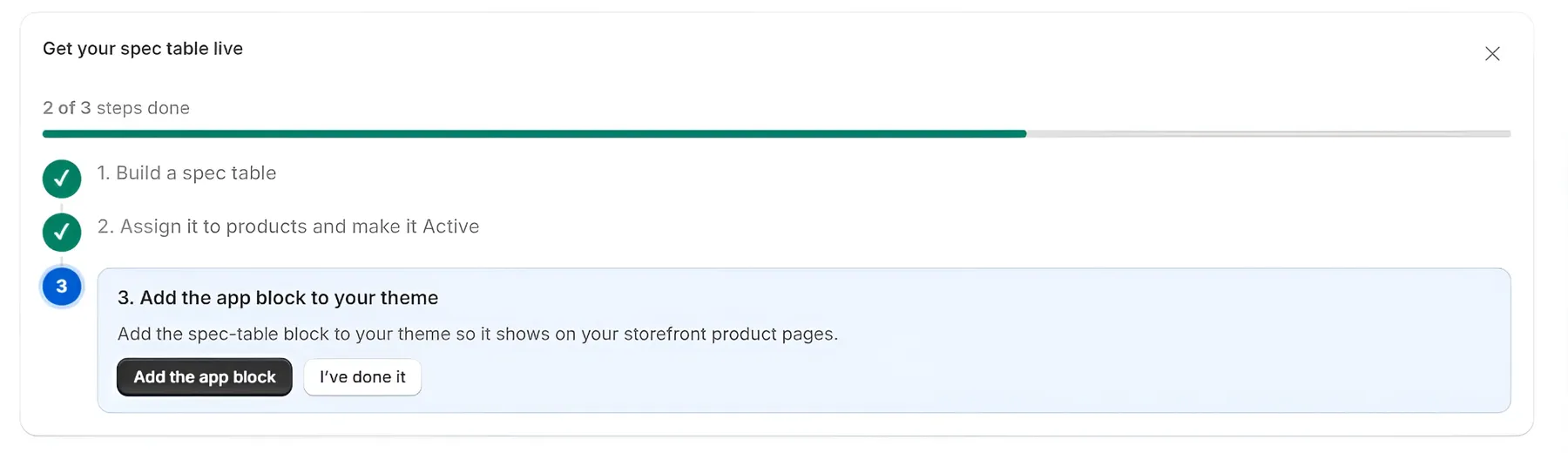
Open the AppX Home page. In the Get your spec table live checklist, open step 3, “Add the app block to your theme”.
-
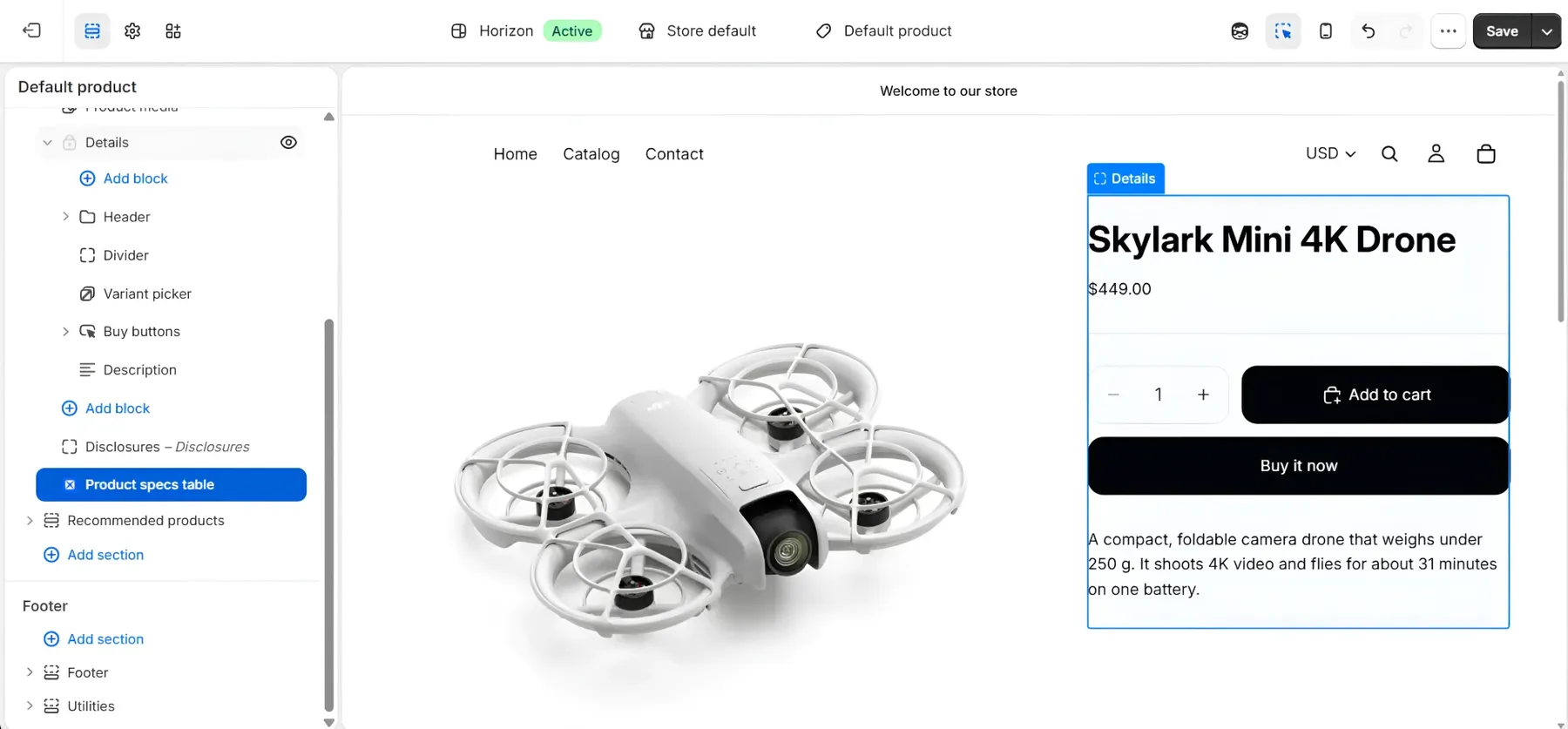
Click the Add the app block button. Shopify’s theme editor opens in a new tab on your product page, with the block already added.
-
Drag the block to where you want the table, for example below the product description.
-
Click Save at the top right. The table won’t appear on your store until you save.
-
Go back to the AppX tab. AppX checks your theme again by itself. If step 3 still isn’t ticked, click the I’ve done it button.
Finished the checklist a while ago? If the block ever goes missing, the Home page shows a yellow message, Your spec tables aren’t showing yet, with the same buttons.
How do I add the block myself?
Prefer to do it by hand? Here’s how:
-
In your Shopify admin, go to Online Store > Themes.
-
Click Customize on your current theme.
-
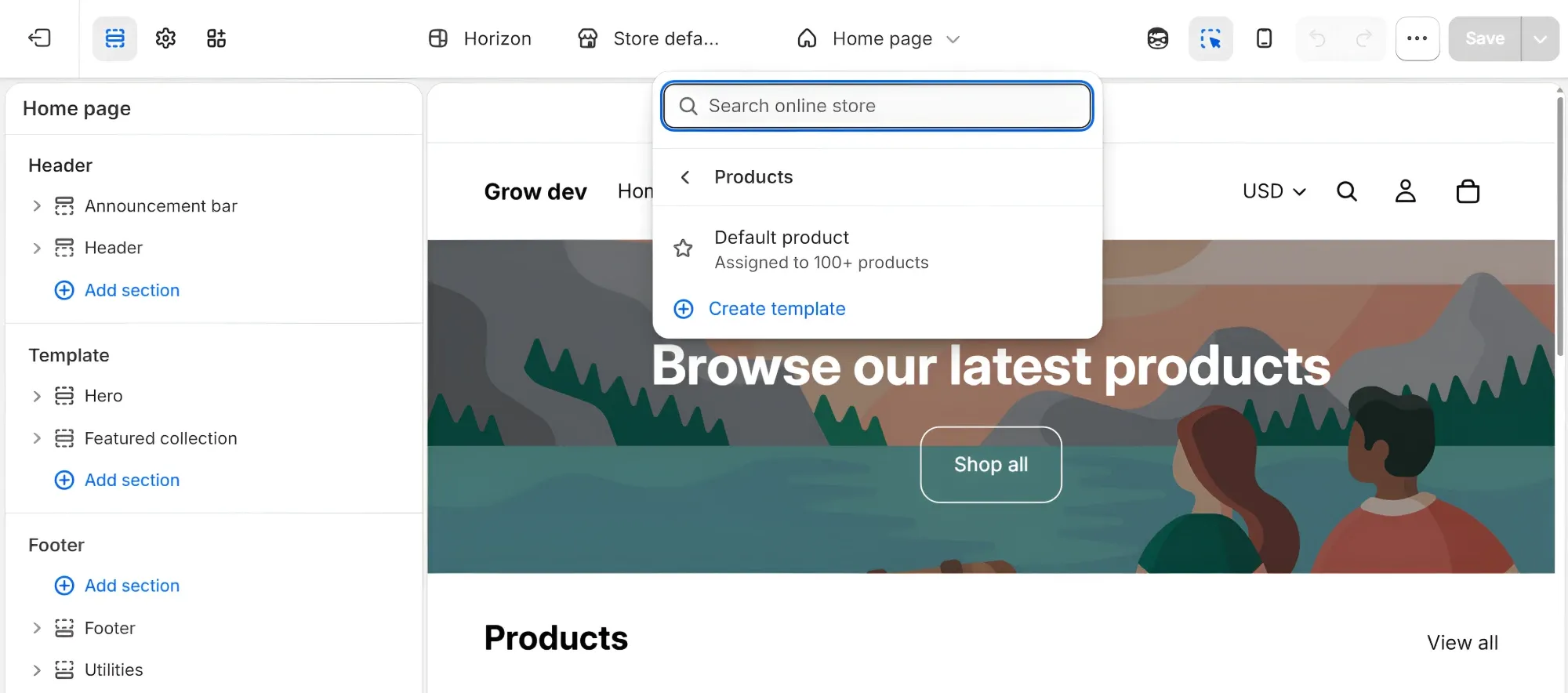
At the top of the theme editor, click the page menu (it starts on Home page). Choose Products, then Default product. If your products use a different product page template, choose that one.
-
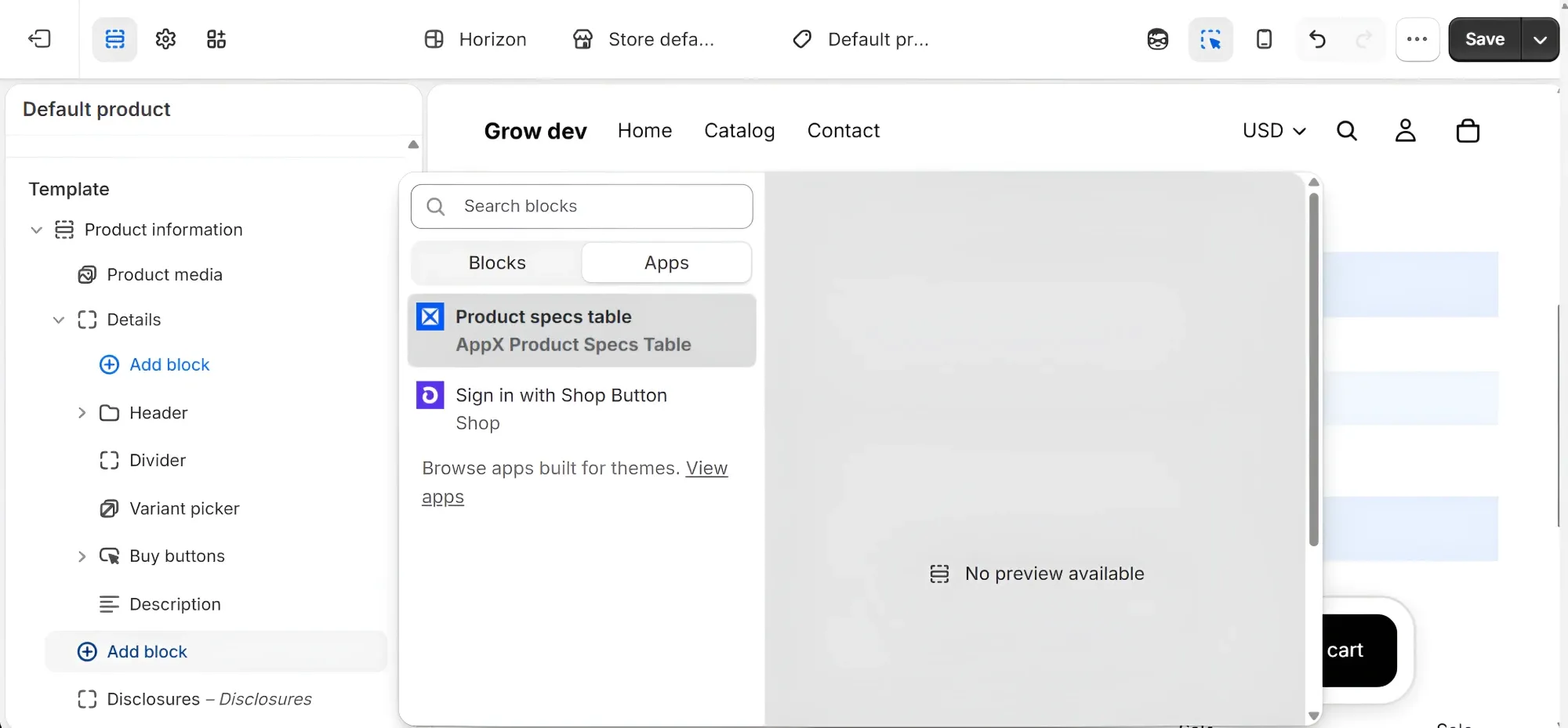
In the left panel, under the product section, click Add block.
-
Click Apps, then choose Product specs table.
-
Drag the block to where you want the table.
-
Click Save.
There’s nothing to set up in the block itself. You manage the table’s rows, style and products in the spec table editor in AppX.
Can’t find Apps in the Add block list? That part of the page doesn’t support app blocks. Add the block to the main product section instead, the one with the product title and price.
Why can’t I see the table in the theme editor?
The theme editor shows one sample product. If that product has no Active spec table, the block looks empty. That’s normal.
To see your table, switch to a product that has one:
- At the top of the left panel, click Preview.
- Search for a product you chose for your spec table, and click it.
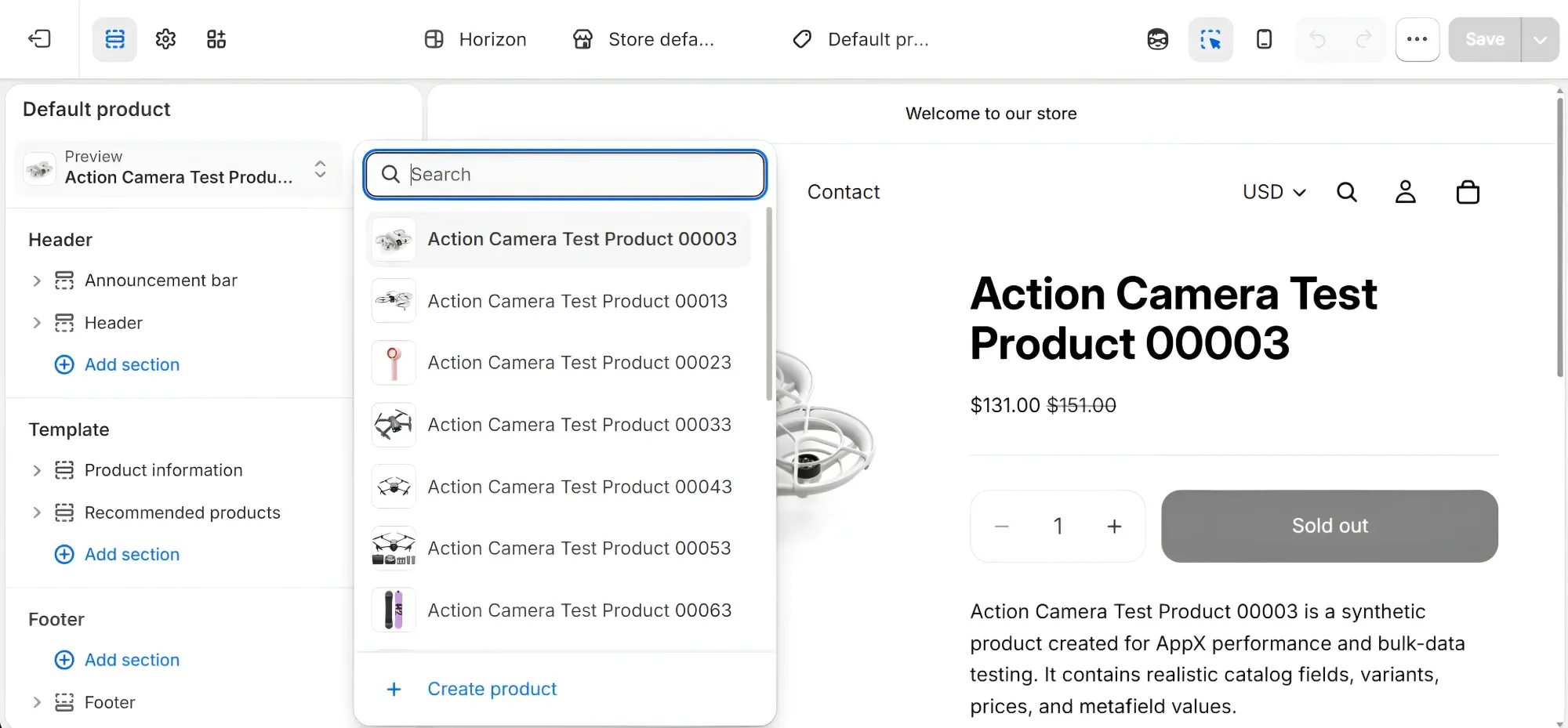
Rows with no value for that product are hidden too. If no row has a value and the table has no section headings, the whole table stays hidden.
Do I need to add the block more than once?
Usually not. Most stores use one product page layout for all their products, so one block covers everything.
Some stores use different layouts for different products, for example one for bundles. Shopify calls these product templates. If you have more than one, add the block to each of them. A product only shows its spec table if its template has the block.
Can I add the block to a theme that isn’t live yet?
Yes. Go to Online Store > Themes, click Customize on that theme, and follow the steps in “How do I add the block myself?”. Two things to know:
- The Add the app block button in AppX always opens your live theme, the one shoppers see.
- AppX only checks your live theme. The Home page shows Live on storefront after you publish the new theme.
How do I know it worked?
-
On the AppX Home page, look for Live on storefront. To check again right away, click the refresh icon (two arrows) next to it.

-
Open a product that has a spec table on your store. The table should be where you put the block.
Still don’t see it? Check that:
- The spec table’s Status is Active.
- The product is one you chose for that spec table.
- You clicked Save in the theme editor.
Still stuck? See Troubleshooting: my table isn’t showing.
How do I move, hide or remove the table?
You do this in the theme editor. Your spec tables in AppX stay as they are.
- Move it: drag the block to a new spot, then click Save.
- Hide it: click the eye icon next to the block, then click Save.
- Remove it: click the block, click Remove block, then click Save.
If you hide or remove the block, no spec tables show on your store. The AppX Home page will let you know the block is missing.