You can add a spec table to your Shopify product pages in four steps, with no code. Your first table takes about 10 minutes.
- Create a spec table.
- Add your rows.
- Choose the products and make the table Active.
- Add the Product specs table block in the theme editor.
You only do step 4 once. For every table after that, steps 1 to 3 are all you need.
What do I need before I start?
- An Online Store 2.0 theme. AppX adds the table as an app block, and only Online Store 2.0 themes (free or paid) support app blocks. Older “vintage” themes can’t show AppX.
- AppX installed. Install it from the Shopify App Store listing. The Free plan covers up to 25 assigned products, and development stores are free with no time limit.
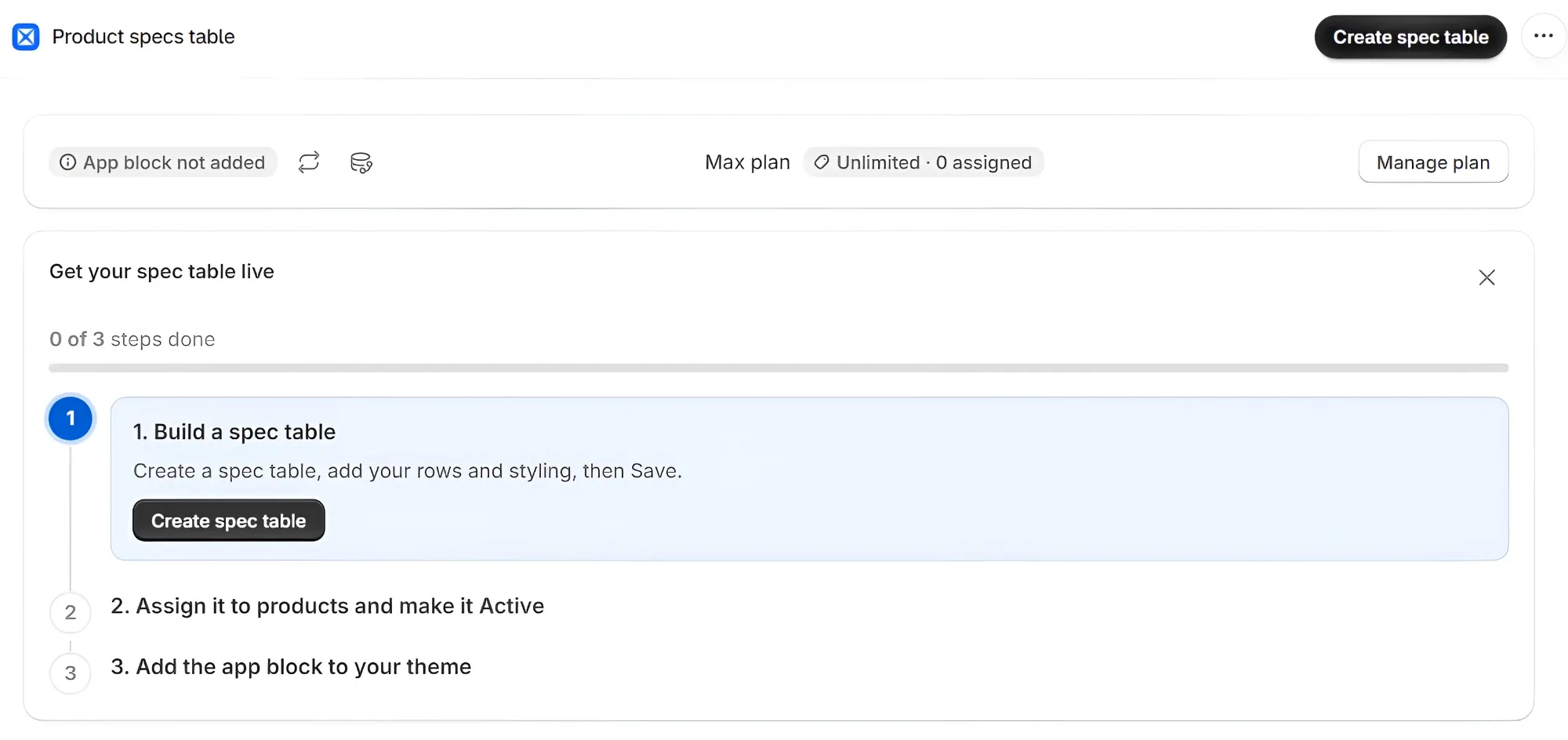
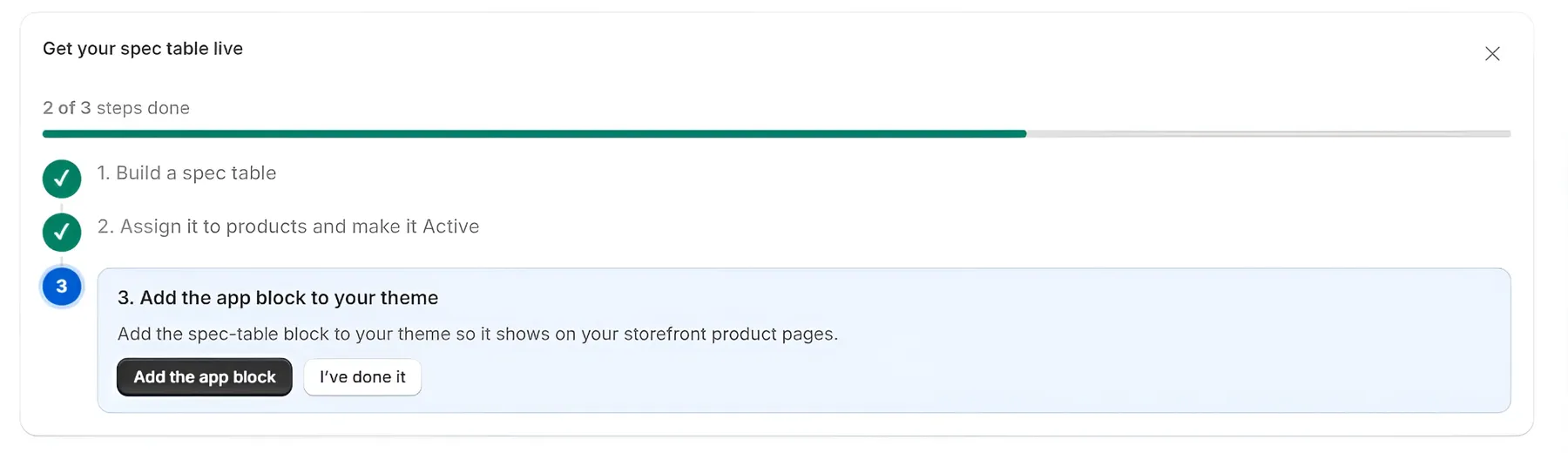
When you open AppX, the Home page shows a Get your spec table live checklist. It covers the same steps as this guide and ticks each one off as you finish it. The step you’re on has a button that takes you straight to the right page.
Step 1: How do I create a spec table?
- On the AppX Home page, click the Create spec table button, in step 1 of the checklist or at the top right.
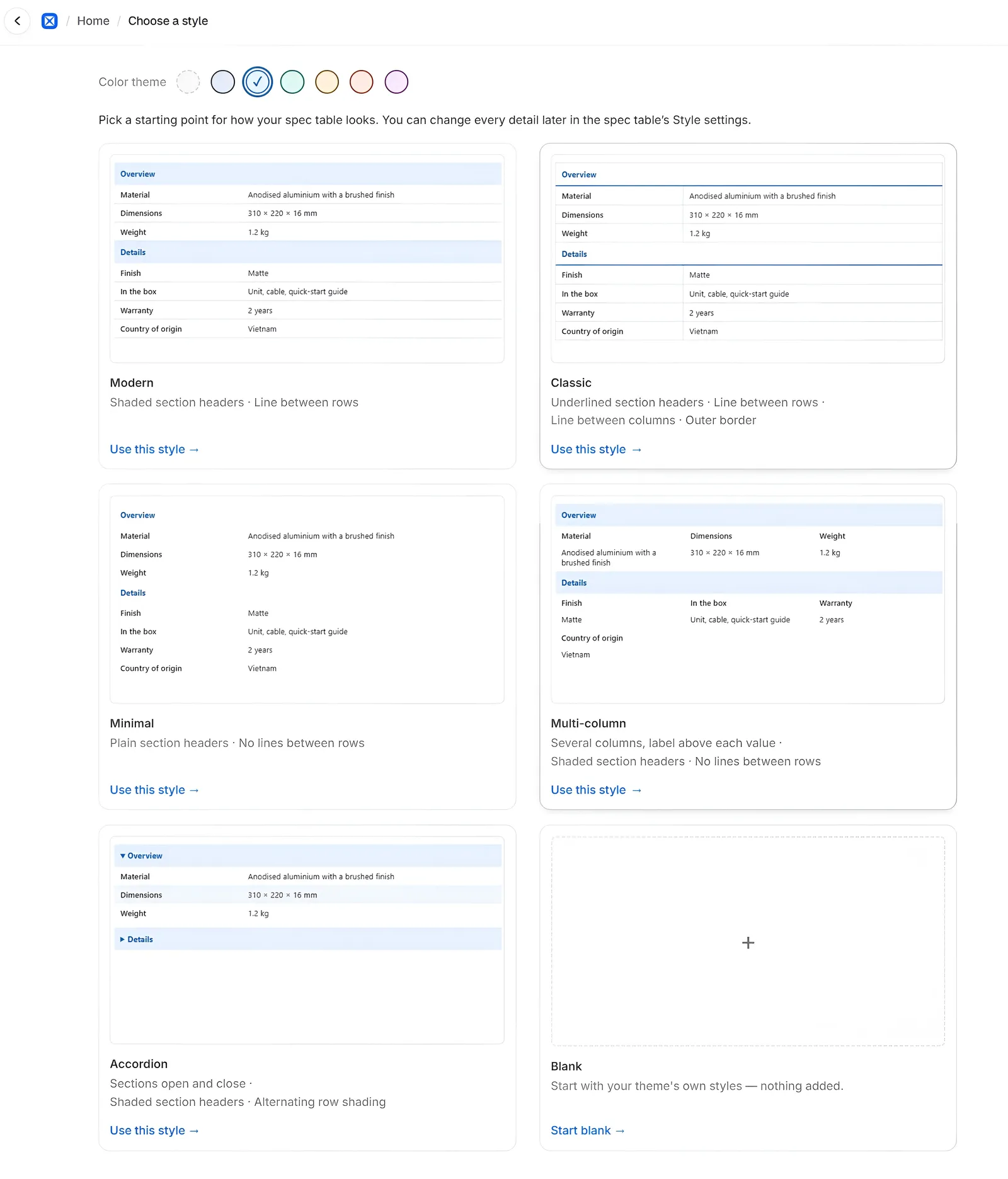
- On the Choose a style page, pick a Color theme at the top.
- Click Use this style under the style you like: Modern, Classic, Minimal, Multi-column or Accordion. For a plain table, click Start blank instead.
Don’t worry about choosing the perfect style. You can change it later on the Style tab.
The editor opens with your new spec table. It’s marked DRAFT, which means shoppers can’t see it yet.
Step 2: How do I add rows?
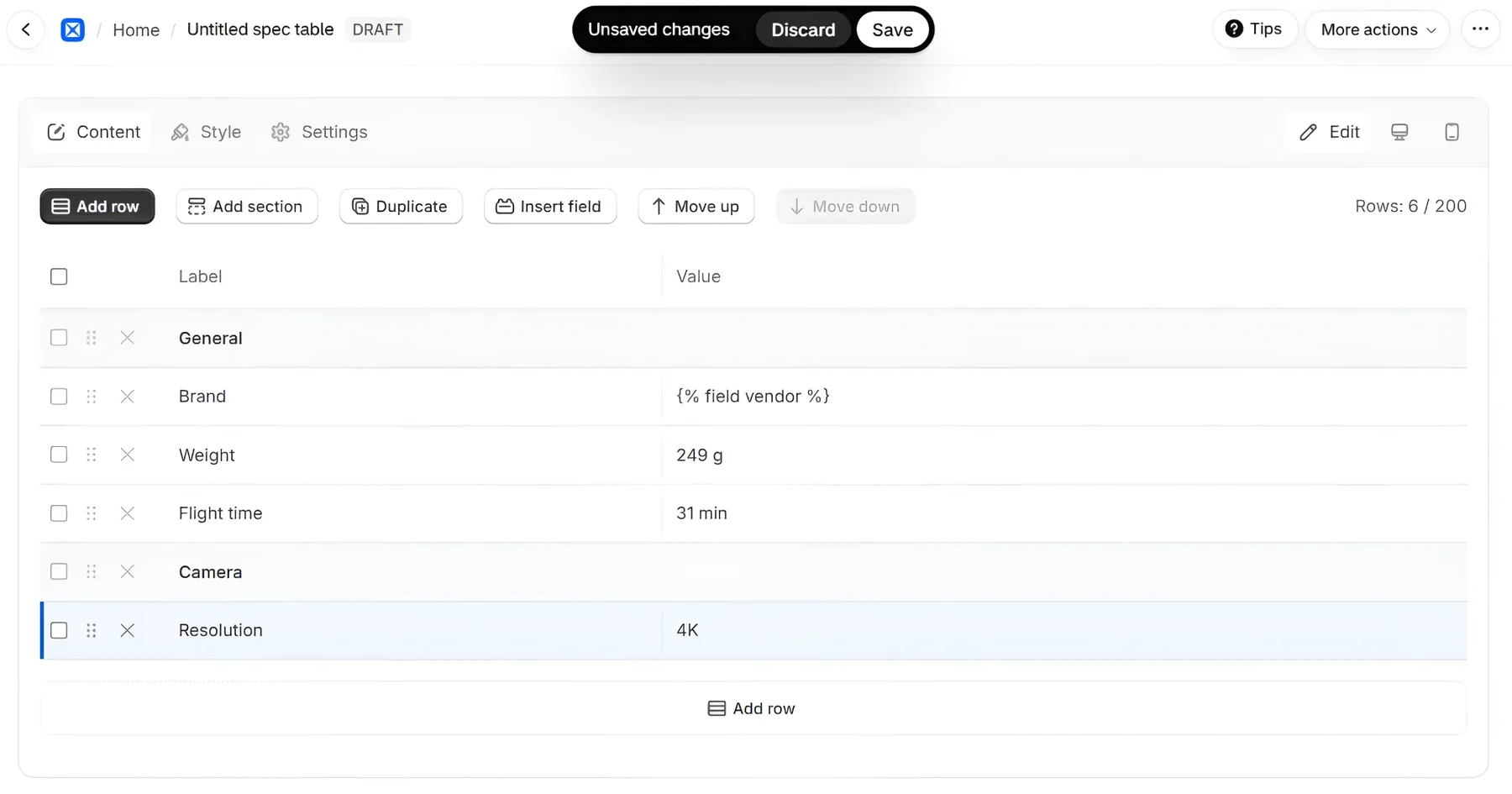
You start on the Content tab. Each row has a label, such as “Weight”, and a value, such as “1.4 kg”. A new table already has one section and five empty rows, so you can start typing right away.
- Click a Label or Value cell and type.
- Need more rows? Click Add row.
- To delete a row, click the × button at the left end of that row, next to the ⠿ drag handle. Deleted the wrong one? Click Undo in the message that pops up.
- To group rows under a heading, such as “Display” or “Battery”, click Add section.
- To pull a value from your product data instead of typing it, click in the value cell, then click Insert field. Pick a Shopify field, such as Vendor, SKU or Weight, or one of your metafields. The editor shows a placeholder like
{% field vendor %}, and on your store each product shows its own value. - Click Save in the bar at the top of the page. The bar appears whenever you have unsaved changes.
Already have your specs in a spreadsheet or on a supplier’s website? Copy the table and paste it into AppX. Each line becomes a row, up to 200 rows per table.
If a product has no value for a row, that row is simply left out on its page. Shoppers never see an empty cell.
Your table is saved, but it’s still a Draft, so it isn’t on your store yet. The next step fixes that.
Step 3: How do I choose products and make the table live?
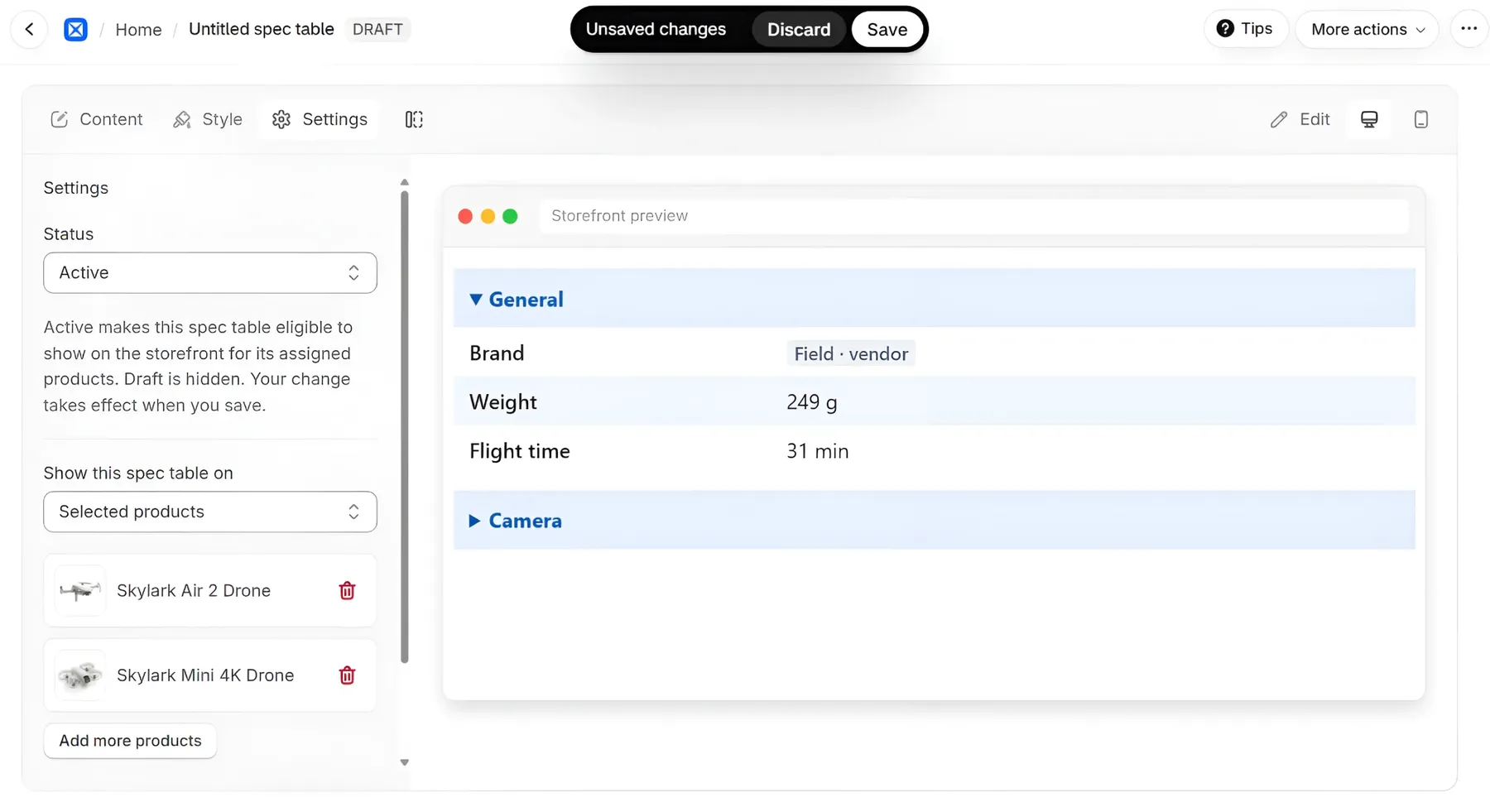
Open the Settings tab. Back on the Home page? Click Open spec table in step 2 of the checklist. It opens your table on its Settings tab.
- Set Status to Active. Draft tables never show on your store.
- Under Show this spec table on, choose:
- All products to show it everywhere. To leave some products out, add them under Except these products.
- Selected products to choose the products yourself. Click Select products and pick them.
- Click Save.
Each product shows one spec table. Two Active spec tables can’t share a product. If you try, AppX stops you with an “assignment conflict” message and a link to the other table, so you can change one of them.
After you save, AppX publishes the table to your store. The Home page shows Publishing… for a short while, and the message goes away when it’s done.
Step 4: How do I add the table to my product page?
You only do this once, in Shopify’s theme editor. After that, every Active spec table shows up on its products by itself. For more detail, see Add the spec table to your product page.
The quickest way:
-
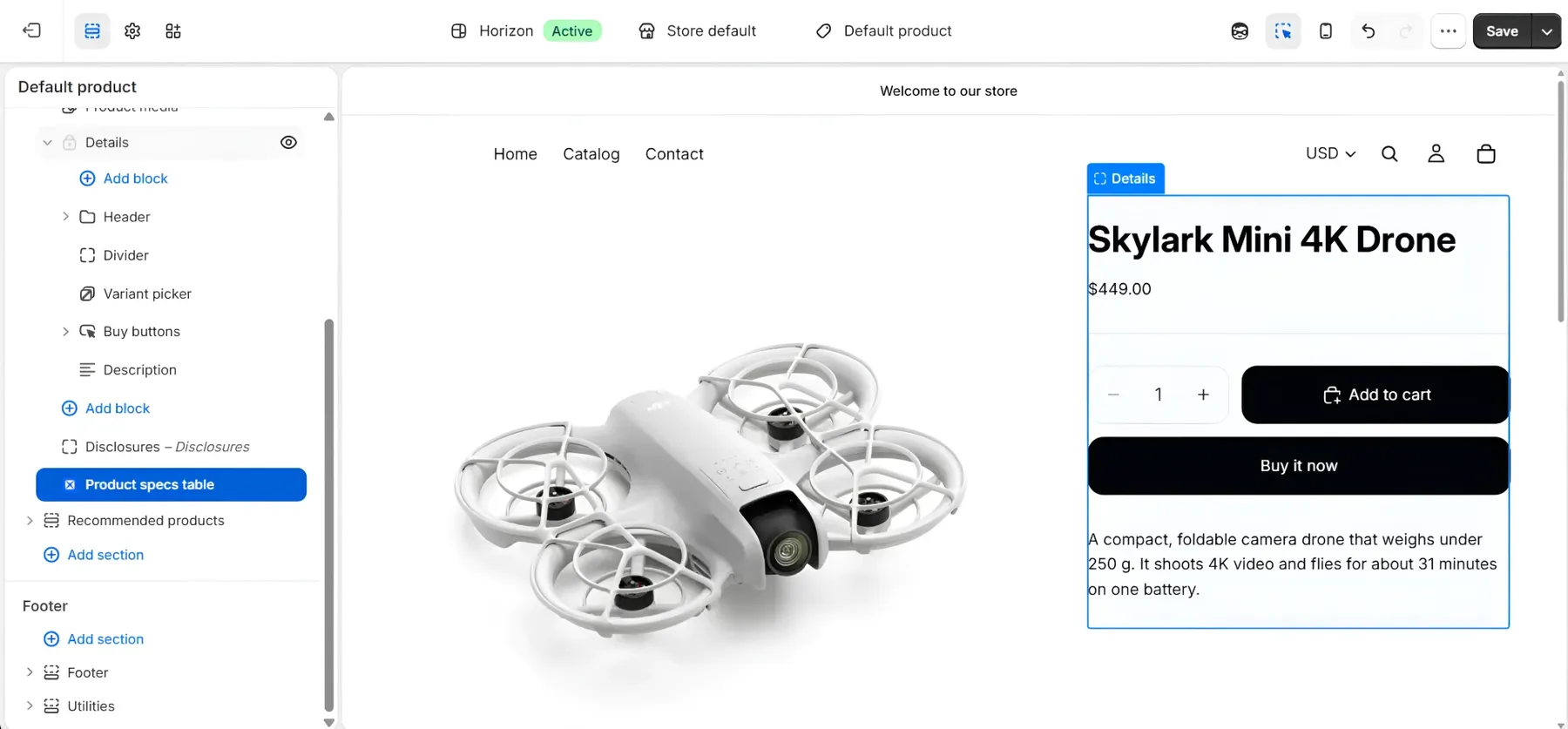
On the AppX Home page, click Add the app block in the checklist. The theme editor opens on a product page, with the Product specs table block already added for you.
-
Drag the block to where you want the table, for example below the product description.
-
Click Save in the theme editor.
-
Go back to AppX and click I’ve done it.
Prefer to add the block yourself?
- In your Shopify admin, go to Online Store > Themes and click Customize.
- Switch to your product page template.
- In the product section, click Add block, open Apps and choose Product specs table.
- Click Save.
How do I check that it worked?
Open one of the products you picked in Step 3 on your storefront. The spec table should be where you placed the block. The AppX Home page also shows Live on storefront once it finds the block on your live theme.
Not seeing it? Check these first:
- The spec table’s Status is Active.
- The product is one you picked in Step 3.
- You clicked Save in the theme editor, on your live theme.
- At least one row has a value for that product. Rows with no value are hidden. If no row has a value and the table has no section headings, the whole table stays hidden.
- The product uses the product template you added the block to. If some products use a different template, add the block to that template too.
Still stuck? See Troubleshooting: my table isn’t showing.
What else can I do?
Rename your table
Every new table is called “Untitled spec table”. Give it a name you’ll recognize, such as “Laptop specs”. Only you see this name. Your shoppers never do.
- In the editor, click More actions at the top right.
- Choose Rename spec table.
- Type the new name and click Rename.
- Click Save.