Your spec table shows on a product page only when all four of these are true:
- The spec table is Active.
- The spec table is assigned to that product.
- The AppX app block is added to your Shopify theme (product page template).
- At least one row of the table has a value for that product.
If one is missing, the table simply doesn’t show. Your store won’t show an error.
To find what’s missing, open the AppX Home page first. Then check each section below, in order.
What does the AppX Home page tell me?
Look at the badge at the top left of the Home page:
| Badge | What it means | What to do |
|---|---|---|
| Live on storefront | You have an Active spec table with products, and AppX found the app block on your live theme. | If one product still shows nothing, keep reading. |
| Not showing | You have an Active spec table, but the app block isn’t on your live theme, or it’s hidden. A yellow message also says Your spec tables aren’t showing yet. | Click Add the app block. See Is the block on this product’s page? |
| App block not added | Same as above, while you’re still working through the Get your spec table live checklist. | Finish step 3 of the checklist. |
| Theme not supported | Your theme is too old for app blocks. A red message also says Your theme doesn’t support app blocks. | Click Change theme and switch to an Online Store 2.0 theme. |
| Not verified | AppX couldn’t check your theme this time. | Click the refresh icon next to the badge. |
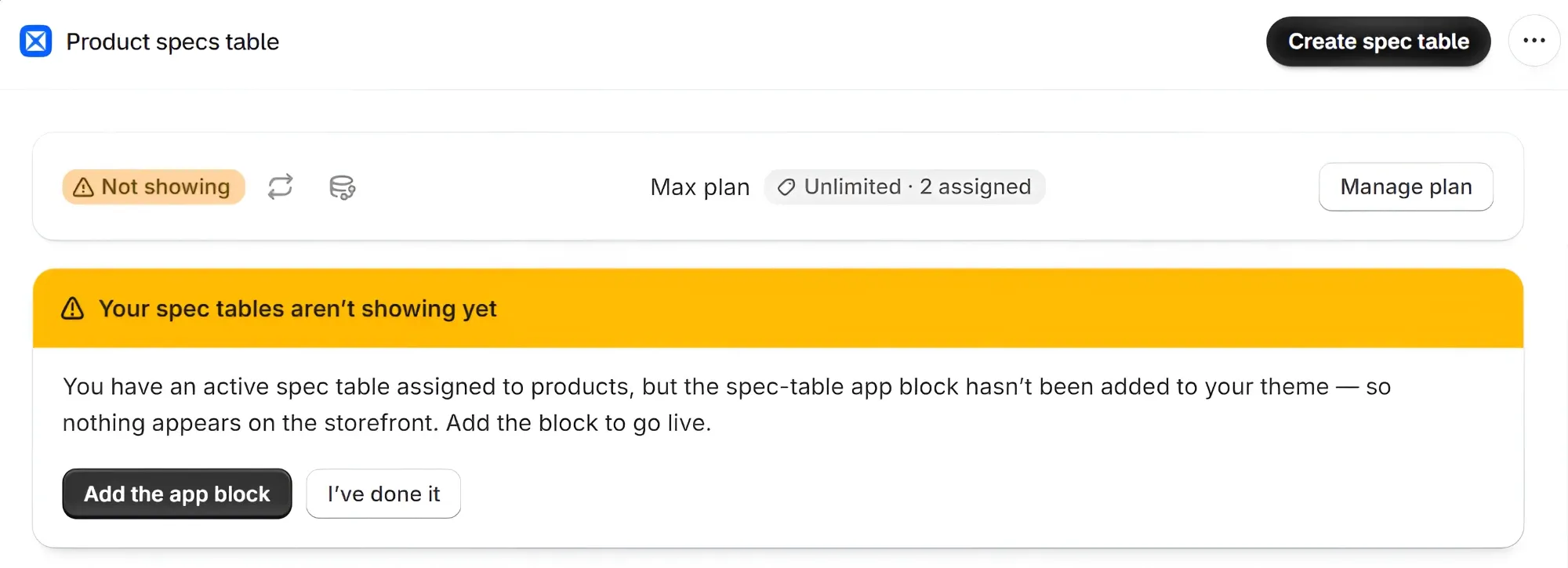
Next to the badge you might also see:
- Publishing… AppX is still publishing your latest changes to your storefront. Wait until it disappears, then refresh your product page.
- Couldn’t publish, with a Retry button. See What if Home says “Couldn’t publish”?
Is the spec table Active?
A spec table in Draft never shows on your store.
- On the AppX Home page, find the spec table in the list.
- Turn on the switch in its Status column.
Or open the spec table, go to the Settings tab, set Status to Active, and click Save. The change only takes effect when you save.
If AppX won’t let you make it Active, see Why won’t AppX let me make the table Active?
Is the product assigned to the table?
A spec table only shows on the products you chose for it.
- Open the spec table and go to the Settings tab.
- Check Show this spec table on:
- No products (not assigned): the table doesn’t show on any product. New spec tables start with this setting. Choose All products or Selected products instead.
- All products: every product gets the table, except the ones listed under Except these products. Make sure your product isn’t in that list.
- Selected products: only the products you picked with Select products get the table. Make sure your product is one of them.
- If you changed anything, click Save.
The Assigned Products column on the Home page shows how many products each spec table covers. If it says 0, the table has no products yet.
Is the block on this product’s page?
The table appears where the Product specs table block sits in your theme. In Shopify’s theme editor, check that:
- The block is on your live theme, the one shoppers see.
- The block isn’t hidden. A hidden block has a crossed-out eye icon next to it. Click the icon to show it again.
- You clicked Save after adding or moving the block.
For step-by-step help, see Add the spec table to your product page.
Does this product use a different product template?
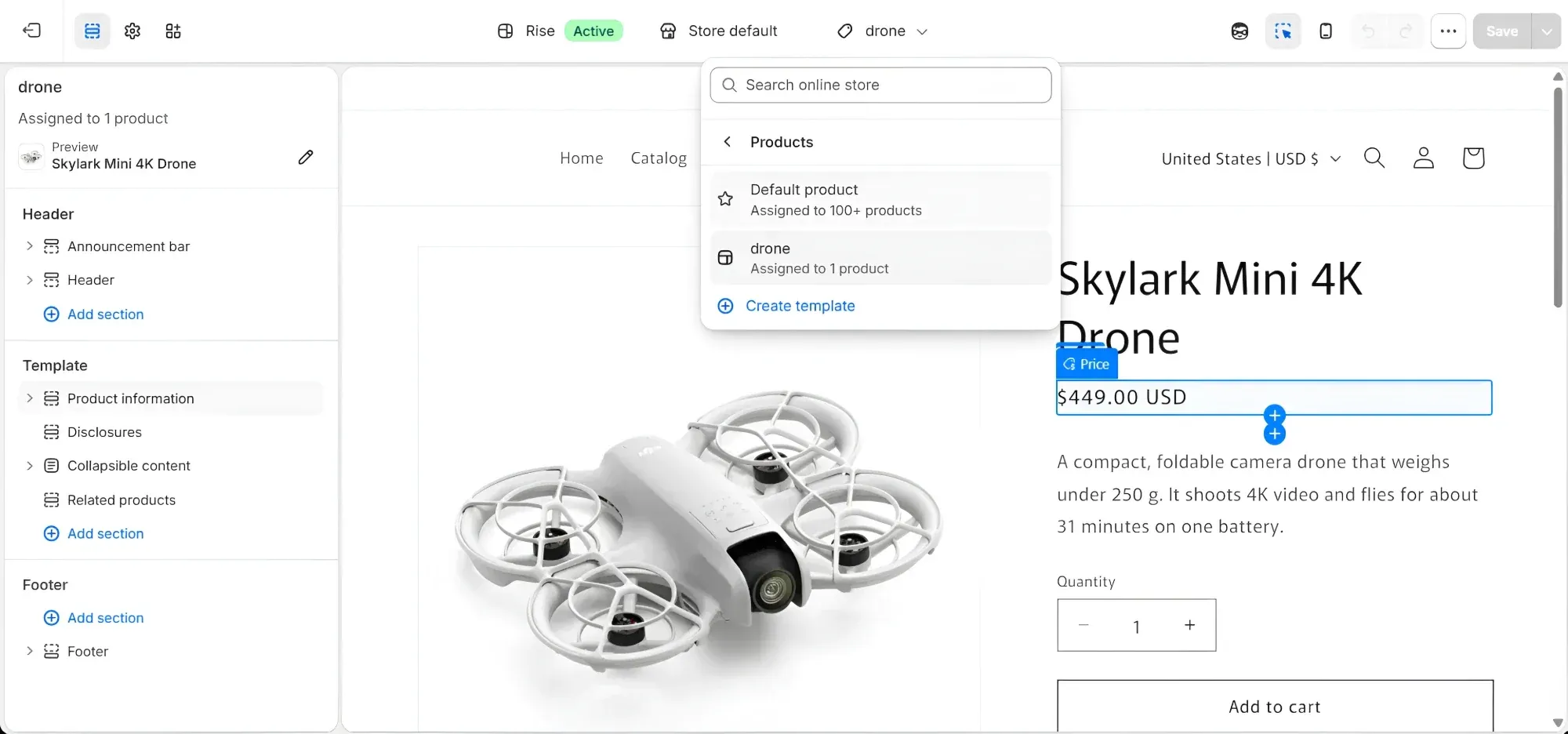
Some stores have more than one product template in their theme. A product only shows its spec table if its template has the AppX app block.
The Home page shows Live on storefront as soon as the app block is on one product template. It doesn’t check every template. So if one product shows a table and another doesn’t, check which template the second product uses:
-
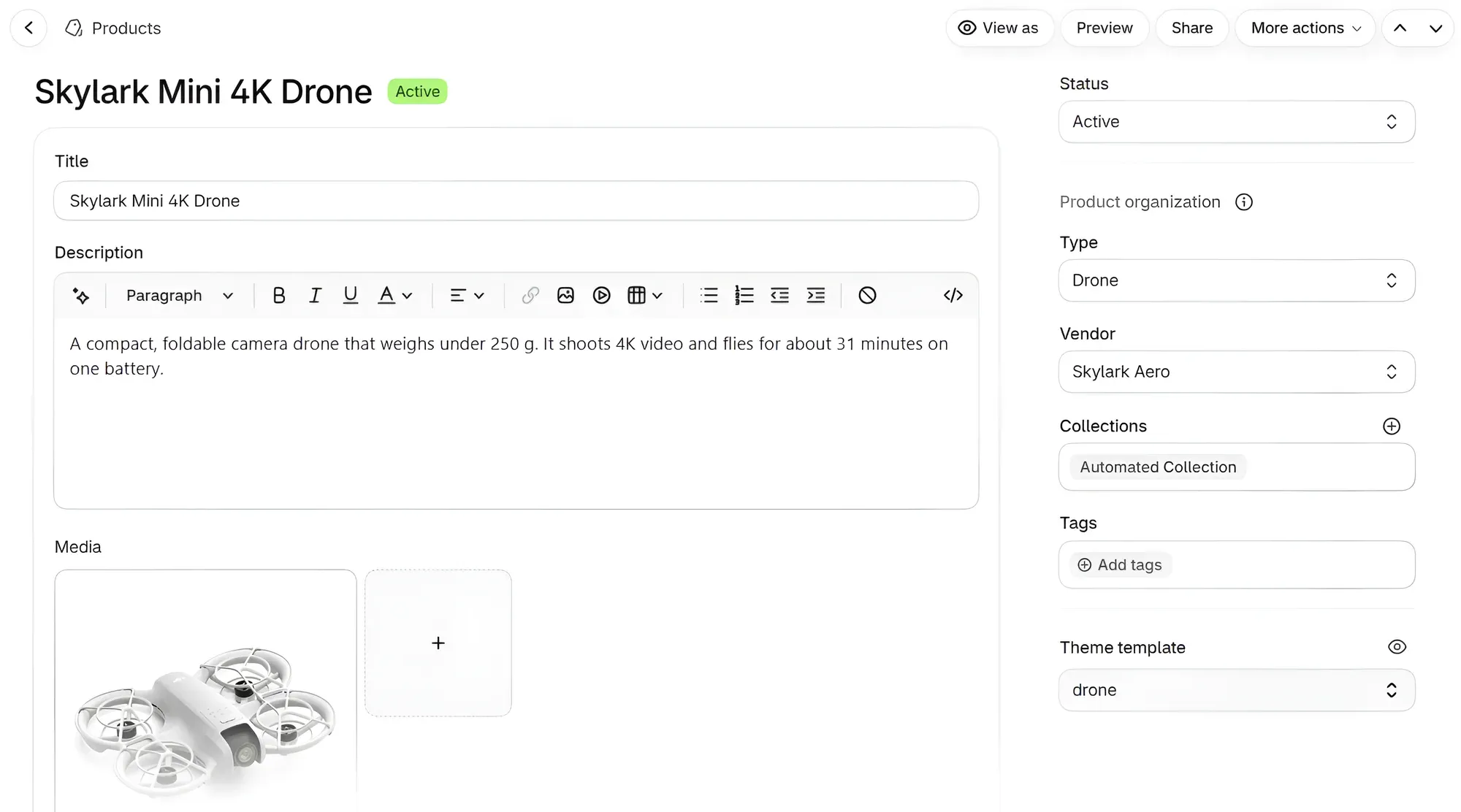
In your Shopify admin, open the product.
-
Find the Theme template setting on the product page.
-
Add the app block to that template in the theme editor too, then click Save.
Did you change or publish a new theme?
The block lives inside your theme. If you switch to a different theme, add the block to the new theme as well. AppX checks your live theme again after a theme change, and the Home page tells you if the block is missing.
Do the rows have values for this product?
AppX hides any row with no value for that product, so shoppers never see an empty cell. This is how it works for every row, and you can’t turn it off. A row with a label but nothing in its value is hidden too.
If none of the rows have a value and the table has no section headings, the whole table stays hidden on that product. This often happens when rows use fields or metafields that the product hasn’t filled in. Add the values to the product in Shopify, or type a value into the row.
See What happens when a product has no value?
Why won’t AppX let me make the table Active?
There are two reasons. AppX shows a message that tells you which one it is.
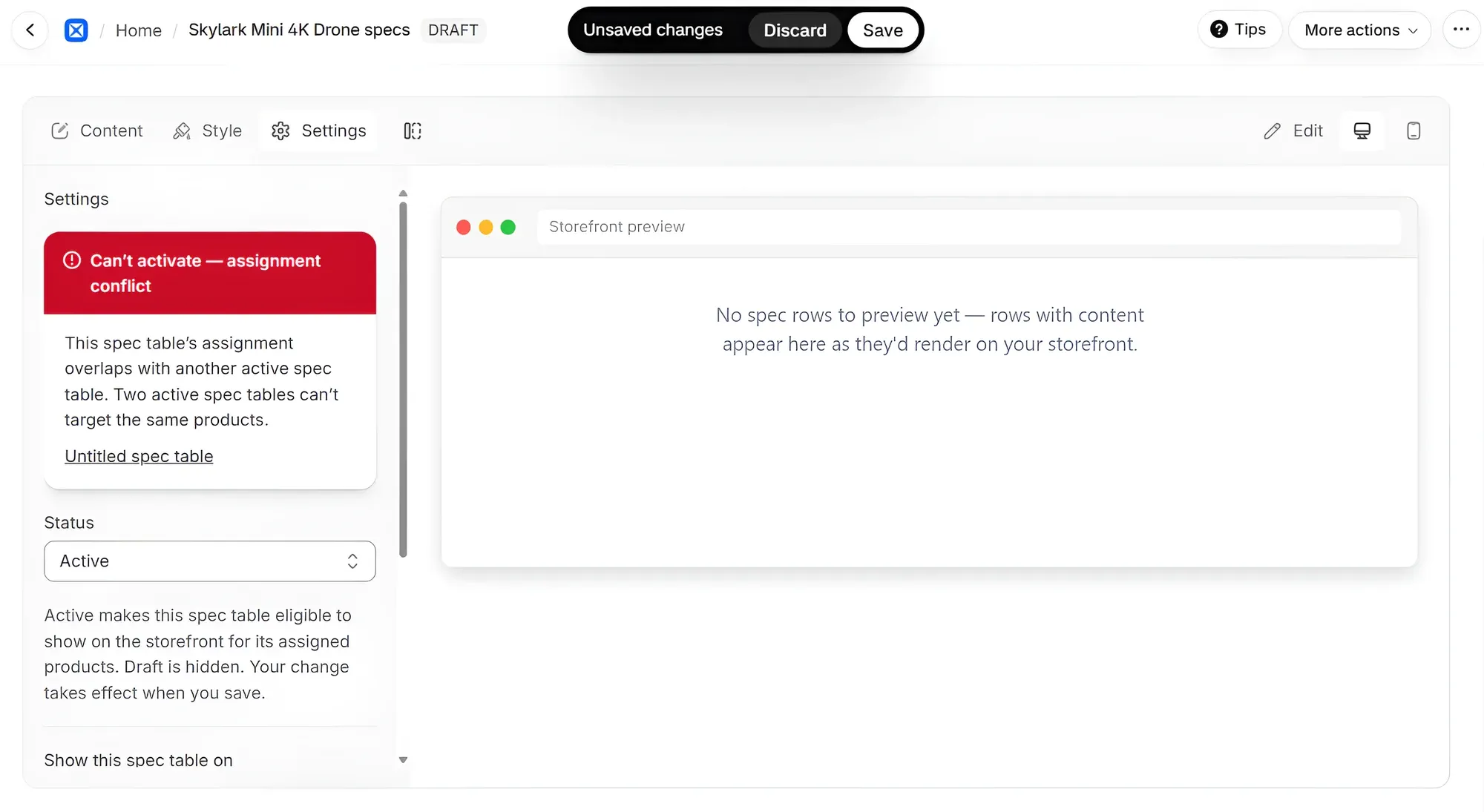
Reason 1: Another Active spec table covers the same products
Two Active spec tables can’t show on the same product. AppX shows a red message, Can’t activate - assignment conflict, with a link to the other spec table. To fix it, do one of these:
- Remove the shared products from one of the tables. With All products, add them under Except these products. With Selected products, remove them from the list.
- Set the other spec table to Draft.
Reason 2: You’ve reached your plan’s product limit
Each plan covers a set number of assigned products. If a change would go over it, AppX blocks the save and tells you your plan’s limit. Click Manage plan on the Home page to upgrade, or assign fewer products.
Your plan never hides a table that’s already showing. If you move to a smaller plan, your current tables keep showing. You just can’t add more products until you’re under the new limit.
What if Home says “Couldn’t publish”?
AppX couldn’t send your latest changes to your store. Click Retry next to it. To see what went wrong, hover over the info icon beside Retry.
You might also see a yellow message that names one of your spec tables:
- “These spec tables are too large to show on your storefront”: the named table holds too much content for your store. Open it, make it shorter, for example by removing rows, and click Save.
- “These spec tables couldn’t be published to your storefront”: something went wrong that you can’t fix yourself. Email support@hiappx.com and tell us which spec table it names.
These messages go away by themselves once the spec table publishes.
Still not showing? Sync your storefront data
If the table is Active, the product is assigned, the block is on the page and the rows have values, the link between AppX and your store may be out of date. You can rebuild it:
- On the AppX Home page, find the two icons next to the badge at the top left.
- Click the sync icon , the second one. When you hover it, it says Sync storefront data.
- In the Sync storefront data window, click Sync now.
- Wait until Publishing… disappears, then refresh your product page.
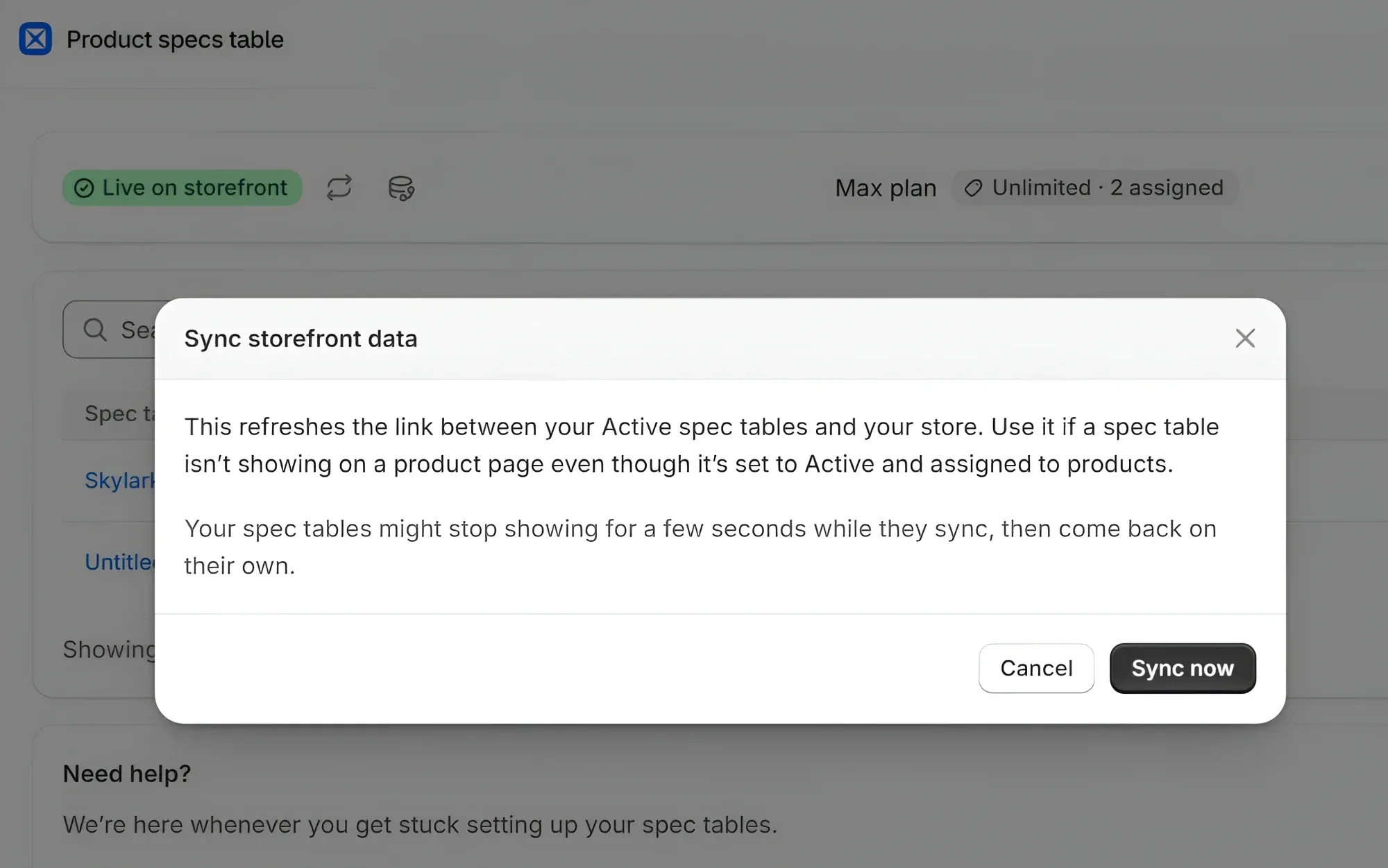
Your spec tables might stop showing for a few seconds while they sync, then come back on their own. Your spec tables and their rows stay as they are.
How do I get help?
Still stuck? Scroll to Need help? at the bottom of the AppX Home page:
- Email support: write to support@hiappx.com. We reply within 1 business day.
- Start live chat: talk to us in the app.
Tell us the product that should show the table and the name of the spec table. That helps us find the problem faster.