You don’t have to type every value by hand. A row can pull its value from your product data, such as the vendor, the SKU or a metafield. Each product then shows its own value, so one spec table works for all your products.
New to AppX? Start with Getting started.
How do I add a field to a row?
-
Open your spec table and go to the Content tab.
-
Click in the Value cell of the row. (You can’t add a field to a Label cell. Labels are always text you type.)
-
Click Insert field in the toolbar.
-
Pick a field from the list. To find one quickly, type its name in the Search fields box.
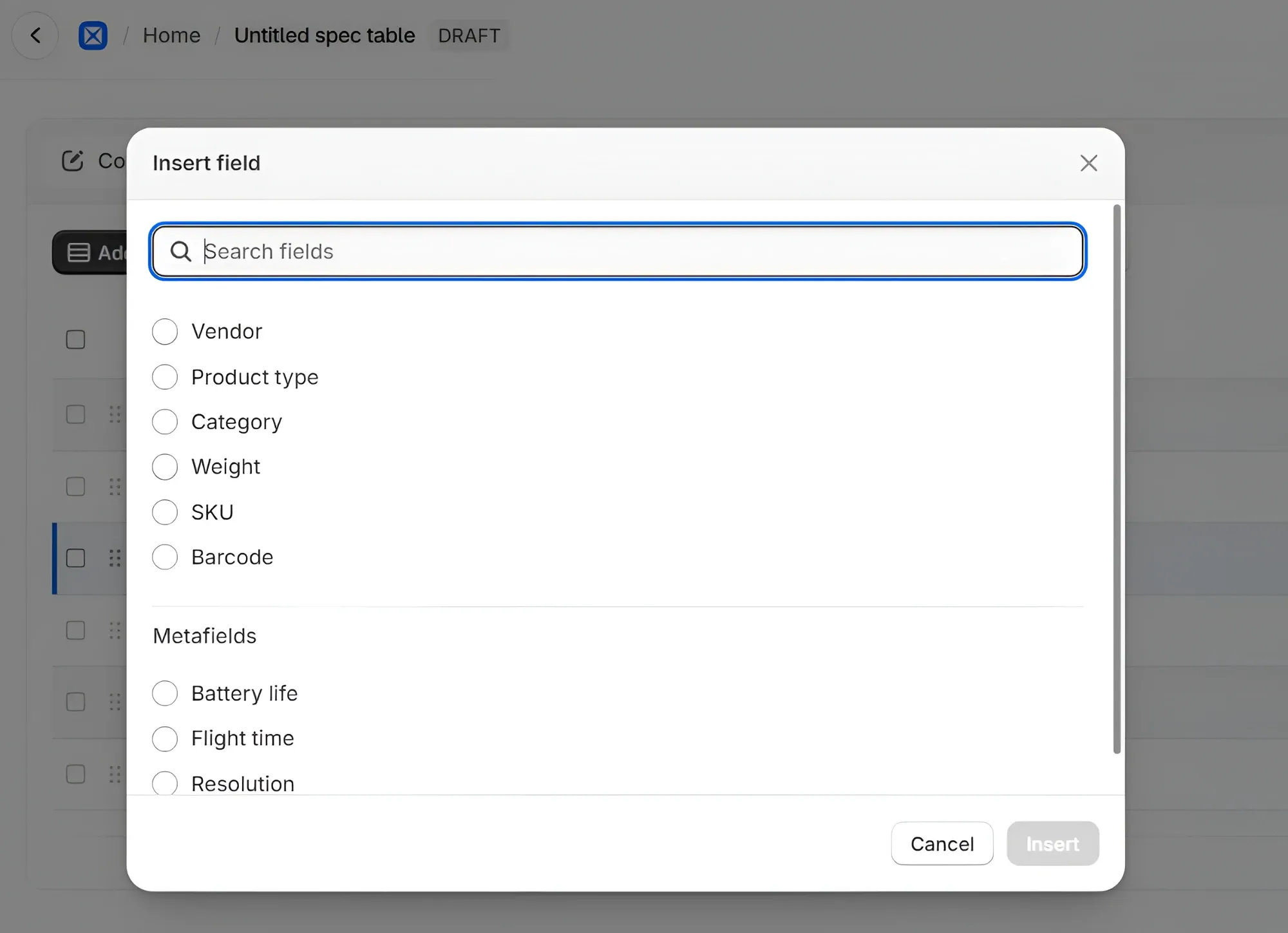
-
Click Insert.
-
Click Save in the bar at the top of the page.
The cell now shows a short code instead of a value, like this:
{% field vendor %}for a Shopify field{% mf custom.battery_life %}for a metafield
That’s normal. On your store, each product shows its own value in its place.
Don’t forget the label. Type a name shoppers will understand in the Label cell, such as “Brand” for the vendor.
Which Shopify fields can I use?
| Field | What shoppers see |
|---|---|
| Vendor | The product’s vendor |
| Product type | The product’s type |
| Category | The category you picked on the product in Shopify, such as “Laptops”. Not your collections |
| Weight | The weight with its unit, such as “1.4 kg”. Blank if the weight is 0 |
| SKU | The SKU |
| Barcode | The barcode |
Do Weight, SKU and Barcode change when a shopper picks another variant?
No. These three fields come from a variant, not the product. AppX always uses the product’s first variant that’s in stock. If every variant is sold out, it uses the first variant. The value stays the same when a shopper picks a different color or size.
So use these fields for products with one variant, or when the value is the same for every variant. If your variants have different values, type the value yourself or leave the row out.
How do I use a metafield?
Open Insert field the same way. Your metafields are listed by name under Metafields, below the Shopify fields. Pick one and click Insert.
Good to know:
- Only product metafields set up in Shopify are listed. A metafield shows up here once it has a metafield definition in your Shopify settings. Variant metafields aren’t available.
- JSON metafields aren’t listed. Shoppers couldn’t read them.
- No metafields at all? You’ll see “This store has no product metafield definitions.” To add one, open Settings in your Shopify admin, click Metafields and metaobjects, then click Products. You can still use the Shopify fields.
- The list didn’t load? If you see “Could not load metafields. Please try again.”, click Retry.
On your store, metafield values show in a readable form:
- Text shows as you wrote it, line breaks included.
- Measurements show with their unit, such as cm or kg.
- Lists show all their items together in one cell.
- Shopify’s category metafields, such as color or material, show the option names, like “Blue”.
Can I mix text and fields in one cell?
Yes. Click where you want the field in the cell, then click Insert field. AppX puts it at your cursor. Type before or after the code, for example Up to {% mf custom.battery_life %} hours. You can put more than one field in a cell too.
One catch: if the field has no value for a product, your text still shows on its own, as “Up to hours”. To hide the row when there’s no value, put only the field in the cell, with no text around it.
To swap a field for another one, delete the whole code and insert the new field. Don’t edit the code by hand. One wrong letter and the value can come out blank, or the code itself can show on your store.
What happens when a product has no value?
The row is hidden on that product’s page, so shoppers never see an empty cell. The other rows still show.
Section headings are different: a heading still shows even if every row under it is hidden. If a product has no values at all and your table has no section headings, the table doesn’t show on that product.
How do I see the real values?
The previews in the editor (the computer and phone icons) don’t use a real product. They show a tag like “Field · vendor” or “Metafield · battery_life” where the value will go.
To see the real values, open a product that uses this spec table on your store. The table only shows there when it’s Active and the Product specs table block is on your product page. See Add the spec table to your product page.